
Issue with Save to SharePoint in Excel 2010

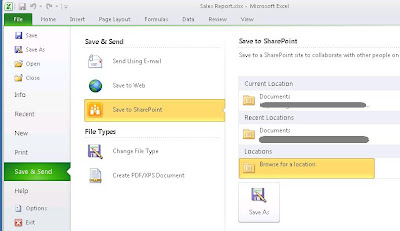
I was trying out Excel 2010 for the first time and working with Excel services. I created an Excel workbook with OOB sales template and wanted to check the Excel service features offered by SharePoint 2010. While trying to publish the workbook to a document library from Excel - Save & Send - Save to SharePoint - Browse for a location - Save As


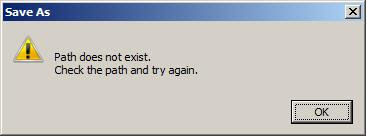
I received an error which said “Path does not exist. Check the path and try again”


I initially thought this would be an issue with the copy of Excel 2010 I had. But after doing some research it seemed the issue was related to the OS environment I was in because I could publish the same file from Windows 7 machine using similar Excel 2010 version.
To get this working from Windows Server 2008 we need to enable a feature “Desktop Experience” from Server Manager


Once I enabled this feature I could successfully publish the workbook.

Comments

Anonymous said…
Thanks it worked for me
Anonymous said…
I was trying to do something similar but trying to connect to data source on 2008 r2 sharepoint from a local copy of excel and had same error. Worked just fine on Win7 with local SQL/SP, but on server I got same error as you. You just saved me a sH!T ton of research. Thank you a million times
Bobo said…
thats GREAT advice brother!!! thanks. saved me a tonne of time with the idiotic windows interface... honest, thanks.

Popular posts from this blog

SharePoint Designer Workflow Failed to Start - Cancelled by System Account

I was working on a List workflow the other day in SharePoint Designer 2010. This list already had a workflow which was working perfectly fine and I needed another manual workflow in it. No matter what I tried the workflow would fail and would log a message in the history list that Workflow failed to start and it was cancelled by System Account . I observed that the same happened with new workflows in that list, new workflows in other lists and I even tried creating new subsites and workflows were behaving the same way. I googled for a while and there were many suggestions to clear SPD cache which did not help me. I played with SPD 2010 for a while and observed that the workflow xml and xoml files were checked out. I read in some blogs that this could cause this issue as well. I tried to check those files in but then I was greeted with a new error! " Cannot perform this operation. The file is no longer checked out or has been deleted ." I had no clue what was happening...

Difference between the architectures of SSPs and SharePoint Service Application

SharePoint 2010 has some new features and components, which help to overcome difficulties such as redundancy and service-sharing that we faced while using SharePoint 2007.  Services in MOSS 2007 were implemented with the help of Shared Service Providers or SSPs. But we cannot use the services of one SSP for another SSP. So each SSP has to have its own set of services and applications, which increases redundant data in the farm.  For example, different managers in the same organization use a SharePoint site to maintain official data associated with an SSP. This SSP is associated with different services, such as Search service, BDC service, and a user profile service. A project manager in this organization requests an exclusive user profile service to maintain project data security. To provide this, we first need to create a separate SSP for the project manager and then a separate service called user profile service - project name. Next, we need to associate the SSP with ...

Document Property disabled under Quick Parts in Word 2010

Document Property under Quick Parts sometimes appears grayed out or disabled in Word client and we can see that Compatibility mode written on the Word client on the top part. This happens because Word disables certain features to make our document compatible with previous versions of Office. To workaround we have to change the compatibility feature. To do that click File on the Word ribbon and select Info. Click on Convert button and click OK on the pop up message. This enables the disabled features and now we can access the Document Properties under Quick Part.